

Google Books allows readers to browse selected preview pages of many books online before buying or borrowing them.
These previews are useful if you want to check a book’s contents, read a few chapters, or evaluate whether it is worth purchasing.
However, the preview feature is limited.
Publishers usually restrict downloading, printing, or copying these pages directly from the Google Books interface.
As a result, readers can only view them inside the browser.
If you want to save these preview pages for offline reading or research, you normally need an additional tool.
This is where third-party utilities come in.
They can capture the preview pages that Google Books allows you to view and save them in formats such as PDF or images.
In this tutorial, I will use a free program called FSS Google Books Downloader.
Compared to some other preview download tools, FSS Google Books Downloader includes a few additional features.
For example, it lets you export pages as PDF, JPEG, or PNG, and you can adjust the image resolution if you want higher-quality pages.
👉 Here is a guide how to download full view books, magazines and newspapers from Google books for free.

Download book preview pages with FSS Google Books Downloader
Below is a step-by-step guide showing how to install and configure the software, and then how to download preview pages from Google Books.
First we need to install and configure the free tool.
Step 1: Install and set up FSS Google Books Downloader
Go to FSS Google Books Downloader.
Click the green color "Download Last Version" button.

From there, just follow the instruction and install this free tool in your computer.
After you have installed this free tool, launch FSS Google Books Downloader.
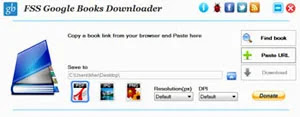
Configure settings FSS Google Books Downloader
First choose where you want to save your downloaded file.
By default, it has already set the "Save to" to your Desktop.
But if you want to change it to other location in your computer, click the blue color "Browse" icon next to the empty space, titled "Save to".
A menu pops up, choose the location you want to save the downloaded book preview pages.

After you have decided, then click the "OK" button.
Underneath the "Save to", there are three options for you choose from.
This is for you to choose the format of the output of the Google book preview pages: PDF, JPG or PNG.

If you just want to read the preview pages, then you can just set it at: PDF.
But if you want to edit the text of these preview pages with OCR, then set it to: JPEG or PNG format.
When you set it in JPEG/PNG format, the downloaded text comes with each individual page.

The "Resolution(px)" and "DPI" settings, you can reset them higher for a clearer image.

Now, let's find out how to download the book preview pages.
Step 2: How to download preview pages from Google Books
Go to Google Books website to get the book, which you like to download its preview pages.
Make sure the book has the word "Preview".

Right click the book title or the word "Preview".
A context menu pops up, click "Copy link address".
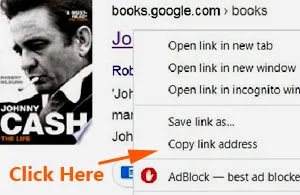
Now let's go to the FSS Google Books Downloader interface.
Step 3: How to download with FSS Google Books Downloader
At the interface, click the "Paste URL" button.

Wait for the selected book to be set at the interface.
Once it has finished, the book cover, its title together with description of the book appeared inside the FSS Google Book Downloader interface.

Now click the "Download" button.

While it is downloading, you can see the green color bar gradually filling up.

Once it's completed downloading, a box pops up with a green color tick sign.
If you set it as "PDF" format, click "Open PDF" button.

Instantly the downloaded preview pages will appear in the Adobe Acrobat Reader.
To close the pop-up box, click the "OK" button or the red color "X" icon.
You can also close the FSS Google Books Downloader interface, by clicking on the red "cross" button at the top right hand corner.
In fact the completed downloaded PDF file is already saved on location which you have set earlier in STEP # 1.

If you saved it on JPEG format, you also see a similar box with a green color tick sign.

To view the saved preview pages, click "Open folder" button.
Again you also see an identical; file named after the book title.

That's how to download Google book preview pages with FSS Google Books Downloader.
More tips how to download book preview pages:
- How to copy preview pages with Google Books Preview Pages Downloader
- How to download preview pages with Google Book Downloader Lite
- How to copy text from Amazon book preview pages
- How to save Google Books preview pages as PDF with a browser extension
- How to copy Google Books preview pages with Google Lens
- How to download Google Books preview pages with GooReader guide